Dual backup allows users to selectively store critical data redundantly across two physical disks, while maintaining a unified view of the data during normal operation. In the event of a single disk failure, data integrity is preserved, minimizing the risk of data loss. This approach enhances data reliability compared to single backup systems, while optimizing storage efficiency—avoiding the 50% capacity overhead typically associated with full-volume mirroring—thereby improving both security and flexibility in data management.
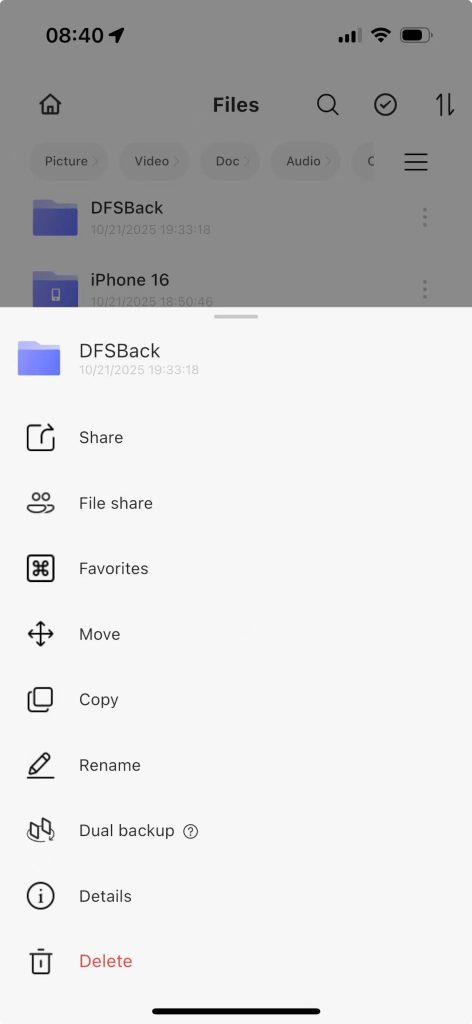
In the DFS dynamic dual backup mode, users can enable or disable dual backup for specific folders via the context menu. #
Step 1: Navigate to the APP home page, go to File Management, click the “…” button adjacent to the target folder, and select “Enable Dual Backup” from the dropdown menu.
Once configured, files within the designated folder will be synchronously replicated and stored on two separate disks.
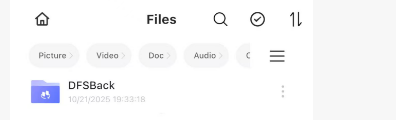
After the dual backup setting is completed, the folder will display the dual backup icon
Step 2: Enter the “Storage Management” page
Step 3: Click on “Safe Double Backup Settings” to enter the “Double Backup Files” page and view the double-backed-up files.
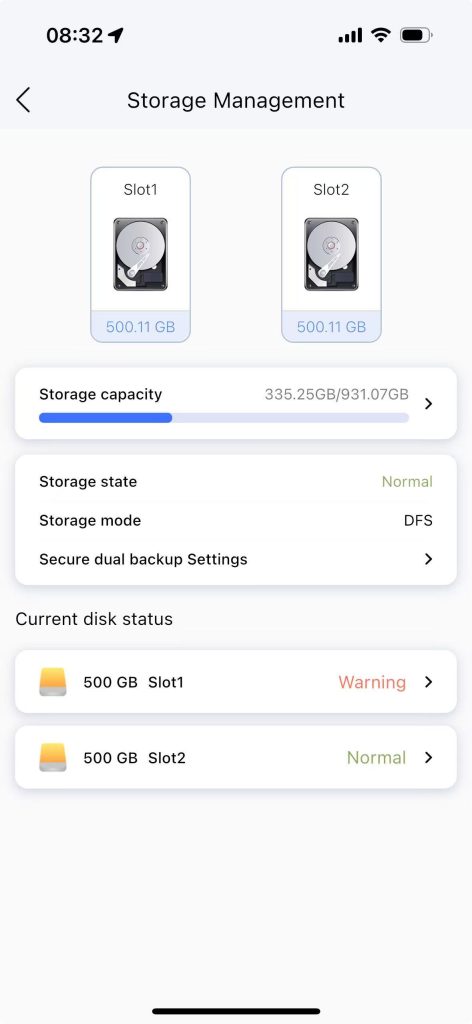
Step 4: When one of the hard disks is unplugged, the data files with dual backups still have backups on the other hard disk.


