1.1 Uploading Photos on Android Phones #
Step 1: Folder Management – Files – Click the “+” icon at the bottom right corner, expand it, and select “Photos”

Step 2: Enter the photo album on your mobile phone, select the photos, and click confirm.

Step 3: Click the “Transfer Task” button to enter the transfer task page, and then click “Upload Completed” to view the photos that have been uploaded successfully.
Step 4: The completed uploaded photos are saved in – File Management – File Root Directory.
1.2 Uploading Videos on Android Phones #
Step 1: Folder Management – Files – Click the “+” icon at the bottom right corner, then expand and select “Videos”
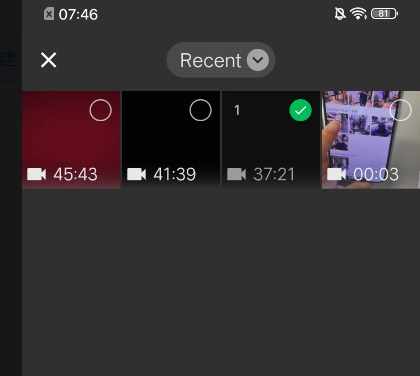
Step 2: Select the desired video files and click Confirm.
Step 3: Click the transfer task button on the upper right corner.
Step 4: Click on the “Upload – Completed” section to view the videos that have been successfully uploaded.
1.3 Uploading Photos from iPhone #
Step 1: Navigate to Folder Management > Files, then click the “+” icon located at the bottom right corner. From the expanded menu, select “Photos”.

Step 2: Enter the photo album on your mobile phone, select the photos, and click confirm.
Step 3: Click the “Transfer Task” button to enter the transfer task page. Under the “Upload Completed” section, click to view the uploaded photos.
Step 4: The completed uploaded photos are saved in – File Management – File Root Directory.
1.4 Uploading Videos to iPhone #
Step 1: File Management – Files – Click the “+” icon at the bottom right corner, then expand and click “Videos”
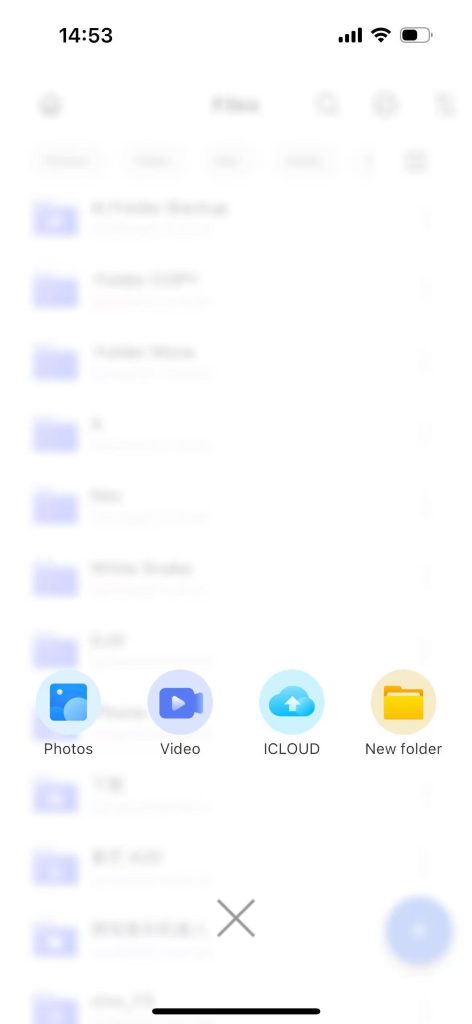
Step 2: Select a video from your phone and confirm.
Step 3: Click the transfer task button on the upper right corner.
Step 4: Navigate to the Transfer Task page and click on the “Upload Completed” section to view the videos that have been successfully uploaded.


