Step into the world of cinematic elegance with a personalized home media sanctuary. Users can effortlessly curate their own private film and television library, where every added title transforms into a richly detailed experience. Upon importing content and generating a dynamic poster wall, the system intelligently pairs each movie or show with stunning high-resolution artwork, elegant cover designs, compelling synopses, and comprehensive cast details. The result is a visually immersive, intuitively navigable, and seamlessly organized digital cinema hub—bringing the grandeur of a modern theater straight into your living space.
1.1 Film and TV Usage Tips #
If the film or TV show is not matched, please follow the rules below to rename it in the file manager of your mobile phone or computer and then click the [Refresh] button on the film and TV home page. The matching accuracy can be increased by 80%.
Tips and tricks
If the matched movie is not found, please rename it according to the following rules in the file management of your phone or computer, thelclick the ‘Refresh’ button on the TV poster wall homepage to re-match program information. Accuracy can be improved by 80%.
l. Movie Naming Format
Movie Title.Year.Resolution.VideoCodec.AudioCodec
Example: Transformers Dark Of The Moon.2011.1080p.AVC.TrueHD7.1.mkv
ll. TV Show Naming Format
Show Title.Season+Episode.Year.Resolution.VideoCodec.AudioCodec
Example: Chilling Adventures of Sabrina.S01E01.2018.1080p.x264.DD5.1.mp4
1.2 Preferred Language Settings #
1. Choose your preferred default language from English—tailoring your viewing experience to your linguistic comfort.
2. This selection serves as the primary language for all textual metadata in your film and TV library, including movie descriptions, director profiles, cast details, and production information.
Please note: This setting applies exclusively to content that is newly added and subsequently scraped into the library.
3. The language preference will not retroactively alter previously scraped entries—for instance, titles already displayed in English will remain in English.
To refresh the language of existing media items, you must re-import the content into the library to trigger a fresh data retrieval with the updated language setting.
1.2.1 Setting the Preferred Language on the PC Client #
Step 1: Launch the PC client and navigate to the left-hand menu, then select the “Movies & TV” section. If no poster content is currently displayed, the Movies & TV page will appear as shown in the image below—a blank or placeholder state indicating that media metadata has yet to be loaded.

Step 2: Click “Language Settings”
Step 3: When posters are already displayed on the Movies & TV page, locate and click the language settings option positioned directly after the question mark icon to select your preferred language.
1.2.2 Method for Setting the Preferred Language on the Mobile App #
Step 1: On the home page of the mobile app, click on “Film Library” on the left. If there is no poster content on the film and television page, it will look like the following page.
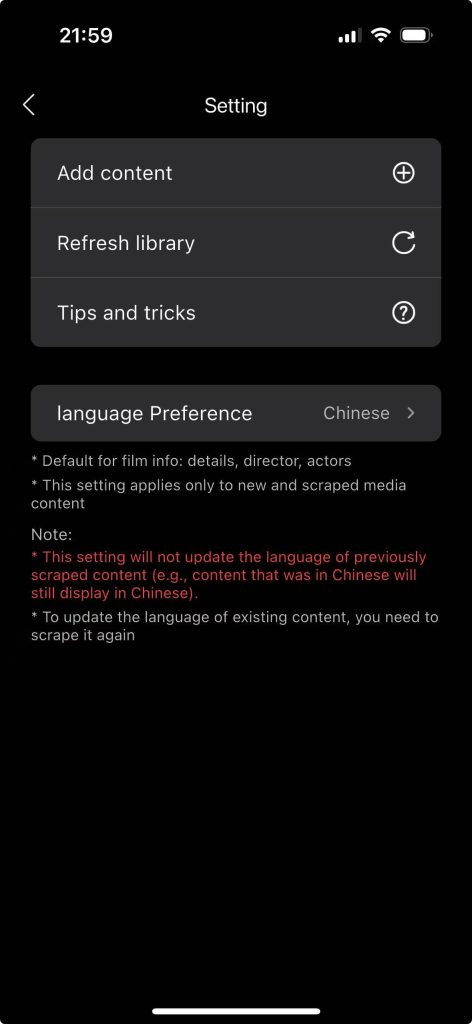
Step 2: Click on the “three dots” in the upper right corner.
Step 3: Click on English in “First Language”
1.3 Settings for Generating Posters When Adding Content to Movies and TV Shows #
1.3.1 Settings for Generating Posters When Adding Content to Movies and TV Shows on PC #
Step 1: Open the PC client, click on “Movies and TV Shows” on the left to enter the Movies and TV Shows page.
Step 2: Click “Add Poster Content”
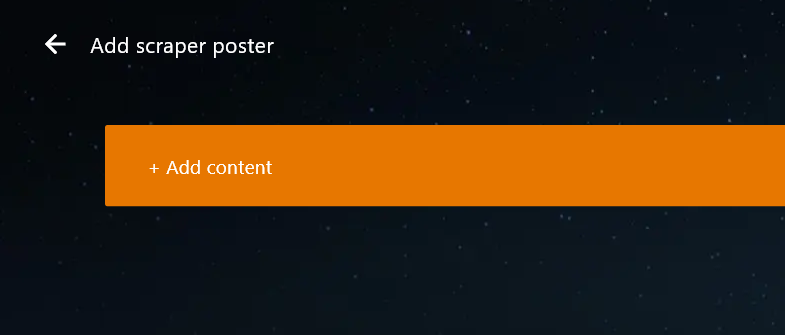
Step 3: Click “Add Content”
Step 4: Click – Add NAS Directory
Step 5: If the directory “****” is selected
Step 6: Click on “****” to enter the subdirectory.
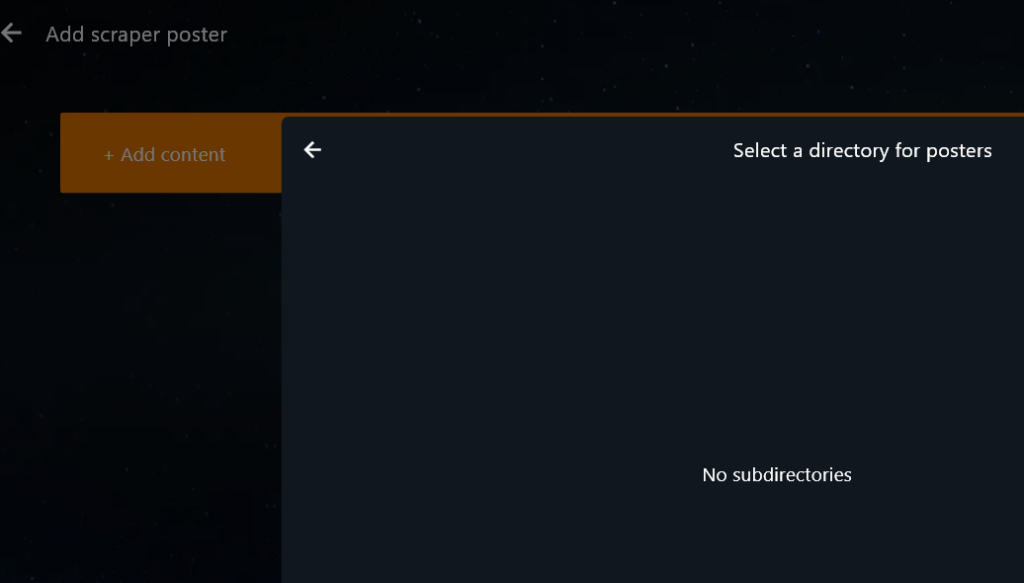
Step 7: Click “OK”. A prompt will appear saying “Directory added successfully”, and then the process of scanning local files will begin.
Step 8: After scanning is completed, “Scanned” will be displayed.

Step 9: Click the back button to return to the film and TV home page. The poster of the movie “The Stage” will be displayed under the “Recently Added” page.

1.3.2 How to Add Content and Generate Posters in the Mobile App for Movies & TV #
Step 1: Open the mobile app, go to the home screen, and tap “Film Library”
Step 2: Click “Add”
Step 3: Click “Add Content”
Step 4: Click – Add NAS Directory

Step 5: If you choose a directory with video content (where the video content is named according to the scraping rules, it will increase the success rate of matching the poster).
Step 6: Click “Add Source Directory”
Step 7: Click “OK”. A prompt will appear saying “Directory added successfully”, and then the process of scanning local files will begin.
Step 8: After scanning is completed, “Scanned” will be displayed.
Step 9: Click the back button to return to the film and TV home page. The poster of the movie “The Stage” will be displayed under the “Recently Added” page.
1.4 Film and Television Collection #
Step 1: Access the film library or the film and television homepage
Step 2: Select the movie titled “***”
Step 3: Click the “Favorite” button. After it is collected, the “Favorite” button will turn blue.
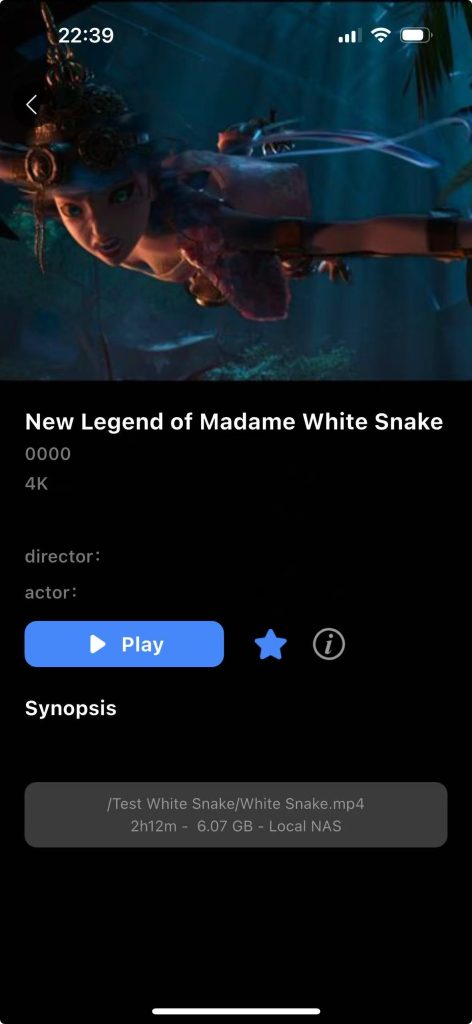
Step 4: Click the “Favorite” button. After collection, the button will turn blue.
Step 5: Return to the film library or the homepage of movies and TV shows. You can see the collected movies and TV shows under the “Favorite” page.

1.5 Film Rating/Year/Introduction/Film Information #
Step 1: Enter the film library/film homepage
Step 2: If choosing the film “*****”
Step 3: Enter the “*****”
You can see the ratings, year of release, clarity, plot, director, and main actor introductions.
Step 4: Click on the “exclamation mark” to enter the video information page and check the file size, encoding format, and duration of the film.
1.6 Video Playback #
Step 1: Enter the film library/video homepage
Step 2: If you choose the movie “****”

Step 3: Click “Play” to enter the video playback page.
Step 4: Click “Previous” and “Next” on the video player to play the previous and next videos respectively.
Step 5: Click the “three dots” in the upper right corner to enter the playlist, and you can choose to play the videos in the playlist.
Step 6: Click “TV Screen Mirroring” to project the film to the TV for local playback.
Step 7: Click “DLNA Screen Mirroring” to project the film to the TV for network playback within the same local area network. DLNA screen mirroring requires that the mobile device and the screen-mirrored device be in the same local area network.
1.7 Update the Poster Wall Content #
1.7.1 Modify the Titles of Films Displayed on the Poster #
Step 1: On the home page of the mobile app – File Management – Find the folder of the movie Example: “*****”
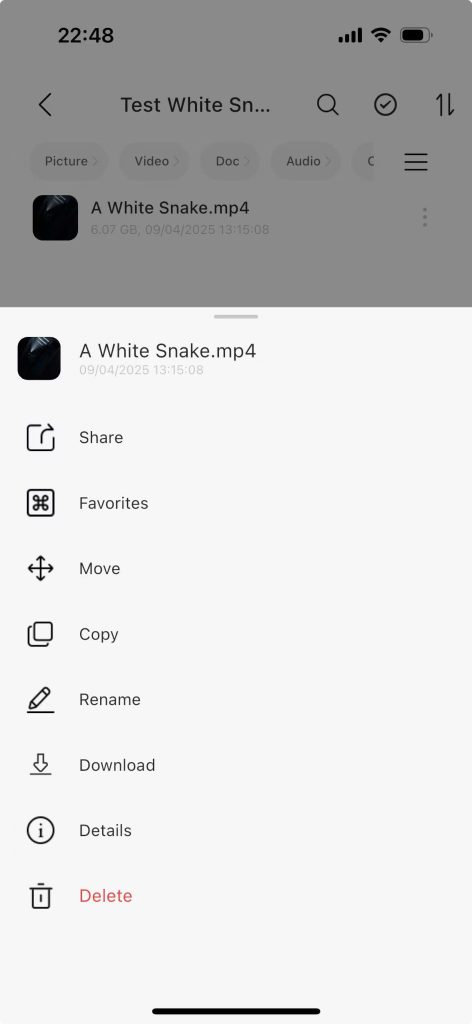
Step 2: Rename “****1.mp4” to “****.mp4”.
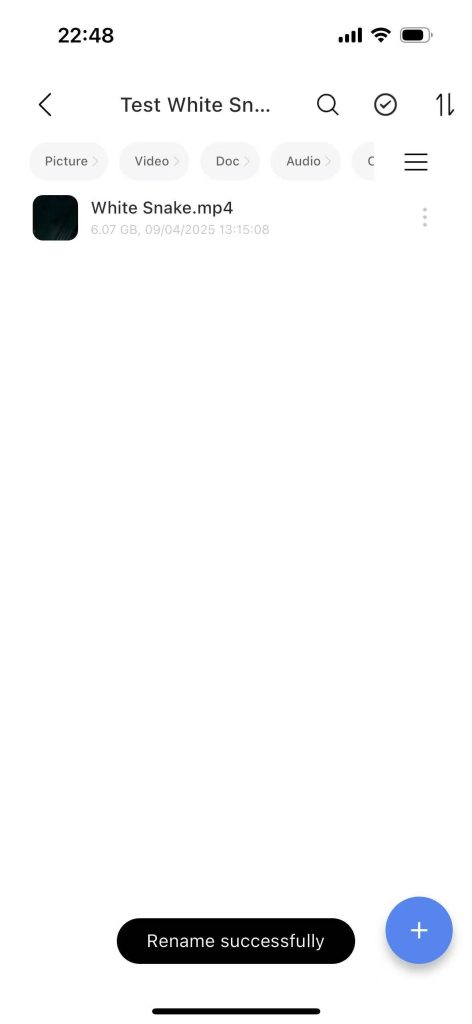
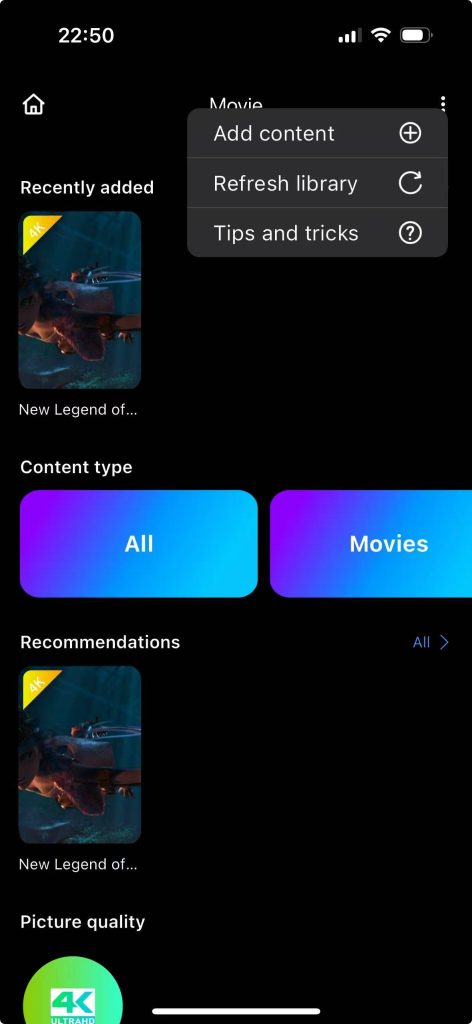
Step 3: Go to the home page of the video library and click the three-dot button.
Step 4: Click the “Refresh Media Library” button. After the refresh is complete, the movie titled “***” will be available.
1.7.2 Automatic Content Addition to Poster Wall #
Step 1:When new content is added to the content folder associated with the poster wall, click the refresh button to automatically update the new content in this folder to the poster wall.
Home page of the mobile app – File Management – Find the folder that has been added to the poster wall, such as the “Movies” folder.
Step 2: Place the “*****” movie folder into the “Movies” folder.
Step 3: Enter the film library homepage and click the three-dot button.
Step 4: Click the “Refresh Media Library” button. After the refresh is completed, the movie “****” will generate a poster wall.
1.8 Delete Poster Wall #
1.8.1 Delete Poster Wall on PC #
Step 1: Open the PC client, click on “Movies & TV” on the left side to enter the Movies & TV page.
Step 2: Click the “+” in the upper left corner.
Step 3: Click the “Scanned” button, and a prompt saying “Remove Film” will pop up.
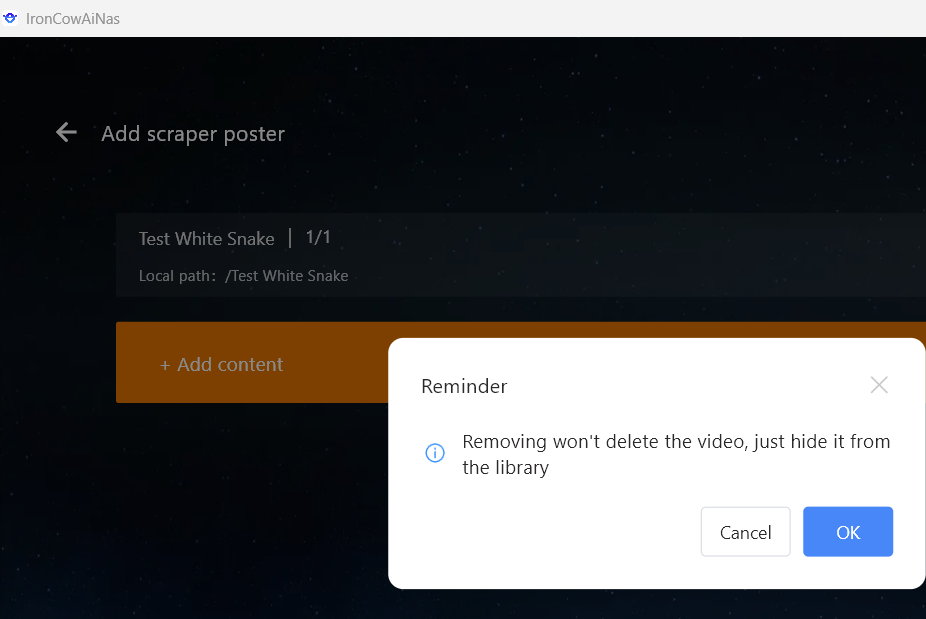
Step 4: After clicking “Confirm”, a prompt will show “Removal successful”.
Step 5: Return to the home page of the movies and TV shows. The selected movies and TV shows will no longer be displayed.
1.8.2 Deleting the Poster Wall on the Mobile App #
Step 1: On the Film and TV Home Page – Click the “Three Dots” button in the upper right corner
Step 2: Select “Add Content”
Step 3: Click the “Scanned” button, and a prompt saying “Remove Film” will pop up.
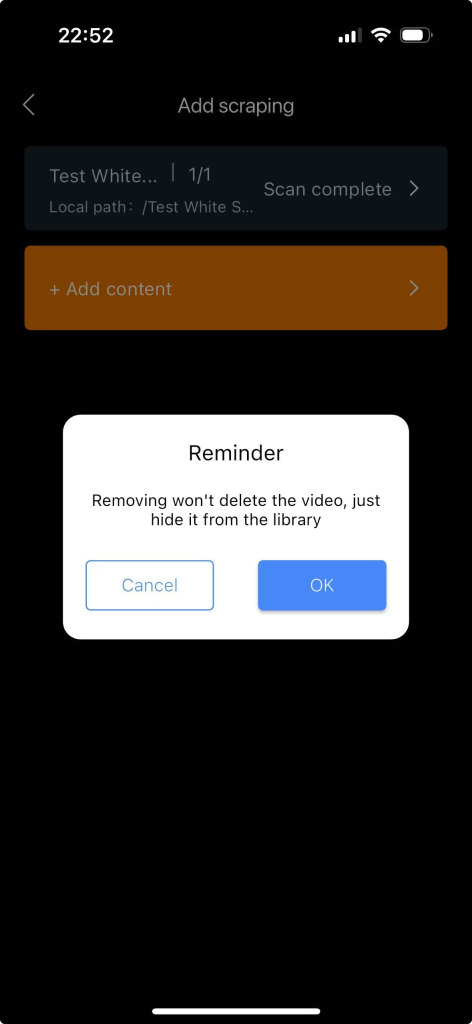
Step 3: After clicking “Confirm”, a prompt will show “Removal successful”.
Step 4: Return to the home page of movies and TV shows. The selected movie or TV show will no longer be displayed.
1.9 What should be done if poster wall video scraping fails? #
If a poster wall video scraping failure occurs, please refer to the “Poster Scraping” guidelines. Rename the folder according to the specified naming convention (e.g., Movie Title.Year.Resolution.Video Codec.Audio Codec — Transformers: Dark of the Moon.2011.1080p.AVC.TrueHD7.1.mkv), then re-add the directory designated for scraping and await the results.
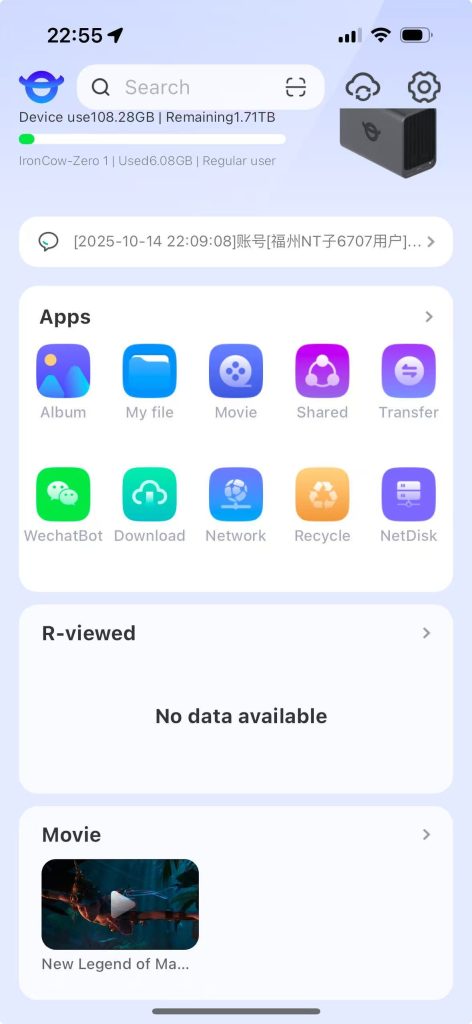
1.10 “Film Library” on the APP Home Page Explanation: #
1. Videos played from the “Video Library” in the APP will be displayed on the “Video Library” page of the APP’s home screen (except for videos played from “My Files”).
2. Videos played from “Videos” on the PC will be displayed on the “Video Library” page of the APP’s home screen (except for videos played from “My Files”).
3. Clicking on “Video Library” will take you to the home page of “Video Library”.
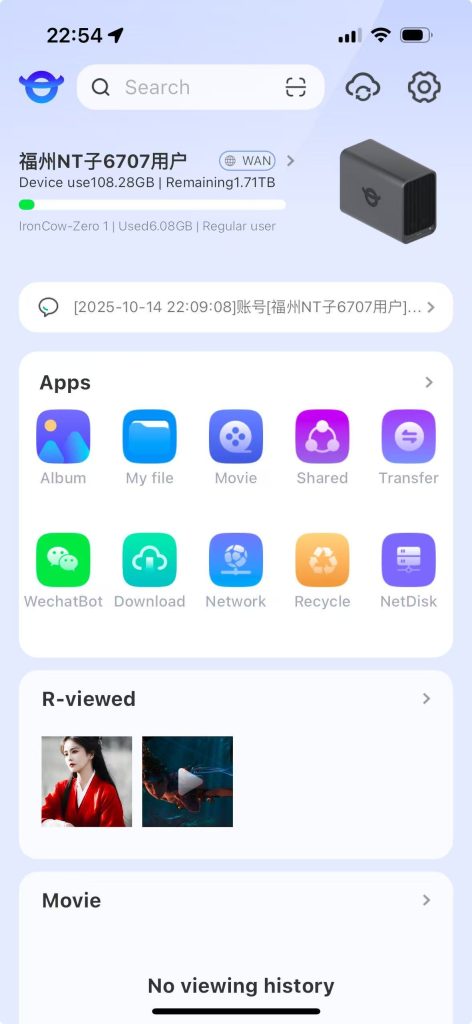
1.11 “Recently Watched” on the APP Home Page Explanation: #
1. Images browsed from the APP will be displayed on the “Recently Viewed” page on the APP’s home screen.
2. Videos played from the APP will be displayed on the “Recently Viewed” page on the APP’s home screen (except for videos played from the video library).
3. Images browsed from the PC will be displayed on the “Recently Viewed” page on the APP’s home screen.
4. Videos played from the PC will be displayed on the “Recently Viewed” page on the APP’s home screen (except for videos played from the video player).
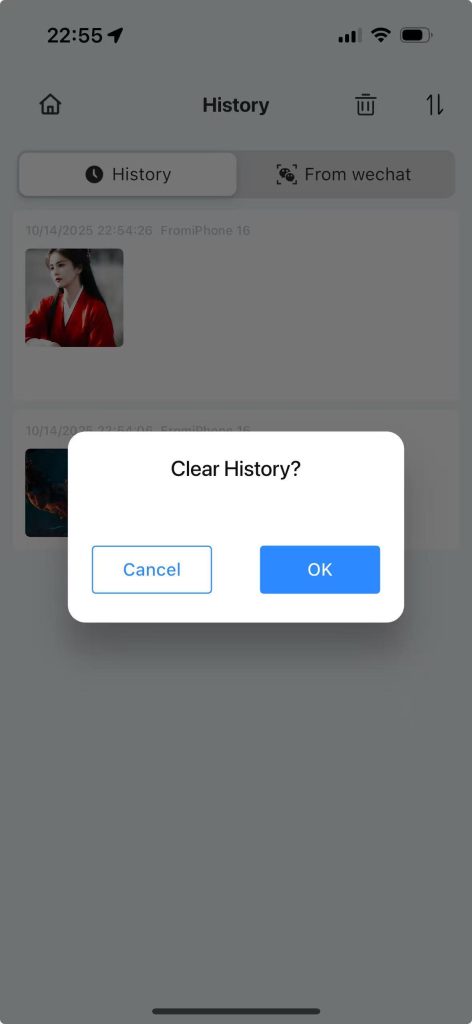
5. Click “Recently Viewed” to enter the “Recently Viewed” page, where you can clear the browsing history.
1.12 PC Home Page “Recently Watched” Explanation: #
1. Images browsed from the APP will be displayed on the “Recently” page of the PC home screen.
2. Videos played from the APP will be displayed on the “Recently” page of the PC home screen (except for videos played from the video library).
3. Images browsed from the PC will be displayed on the “Recently” page of the PC home screen.
4. Videos played from the PC will be displayed on the “Recently” page of the PC home screen (except for videos played from the video player).
5. Click “Recently” to enter the “Recently Viewed” page, where you can clear the browsing history.
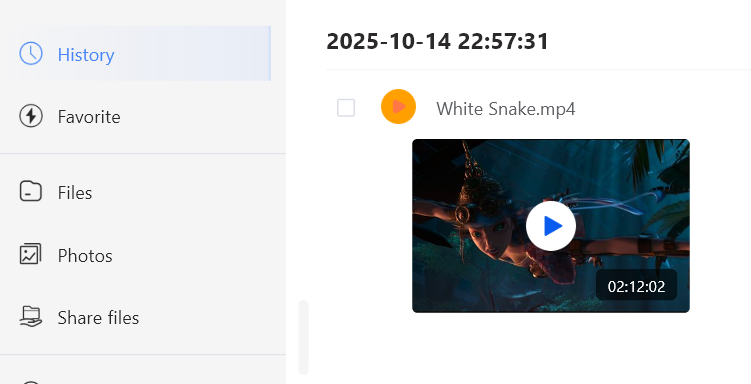
1.13 “Film and Television” on the PC homepage Explanation: #
1. Videos played from the “Video Library” in the APP will be displayed on the “Recently” page of the PC home page (except for videos played from My Files).
2. Videos played from “Movies & TV” on the PC will be displayed on the “Currently Watching” page of the “Movies & TV” home page on the PC (except for videos played from My Files).
3. Clicking on “Movies & TV” will take you to the “Video Library” home page.


