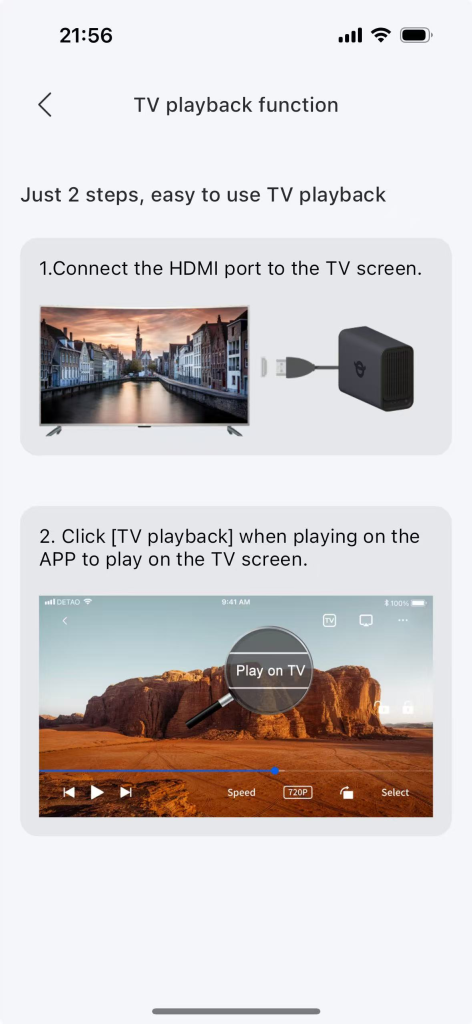
When playing movies or TV shows, you can project them onto a large TV screen for viewing.
1.1 Method for TV screen projection from file management #
Step 1: Connect the HDMI cable to the HDMI interface of the NAS and the HDMI interface of the TV respectively.
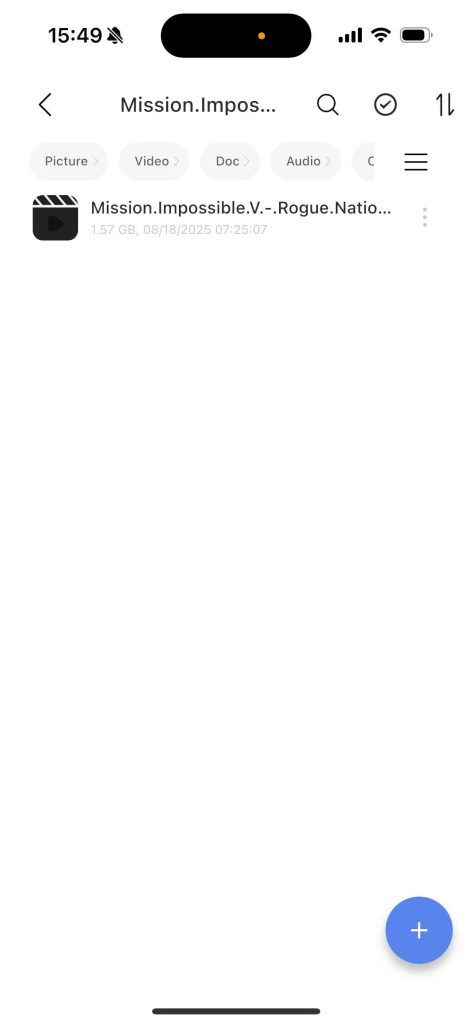
Step 2: On the mobile app, go to File Management and select the movie or TV show.
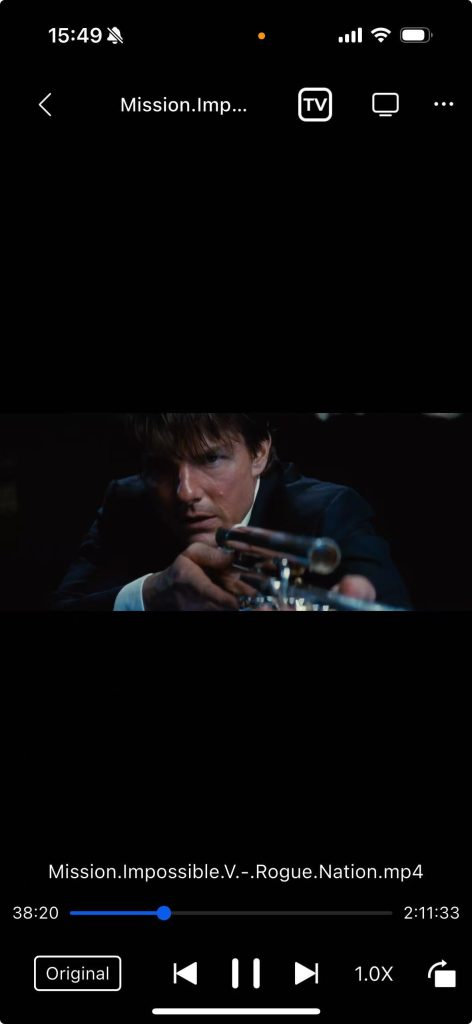
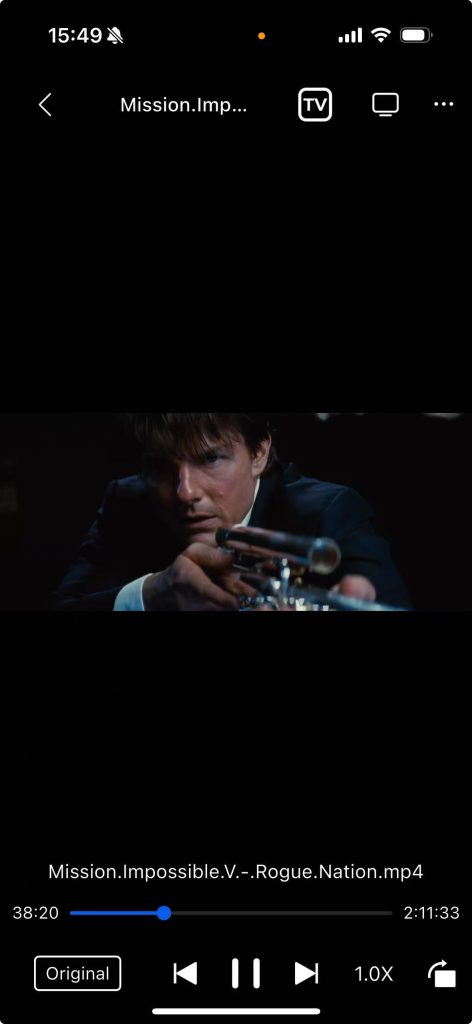
Step 3: When playing the movie “The Stage”, click “TV Play” to project it onto the TV.
1.2 Method for Screen Mirroring to TV from the Film Library (Poster Wall) #
Step 1: Connect the HDMI cable to the HDMI interface of the NAS and the HDMI interface of the TV respectively.
Step 2: In the mobile app – Film Library (Poster Wall) – select the film or TV show.
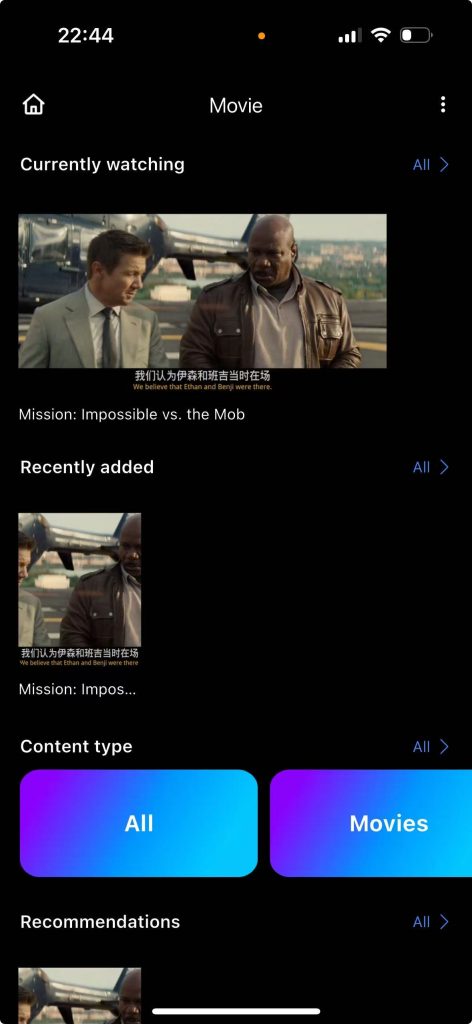
Step 3: When playing the movie “The Stage”, click “Play on TV” to mirror the screen to the TV.
1.3 Soft Remote Control Function for TV Big Screen Playback #
Step 1: After initiating “TV Playback,” return to the APP home screen, where the soft remote control icon will appear
Step 2: Click the soft remote control icon to enter the playback page.
1. Fast-forward button: Click the fast-forward button to fast-forward.
2. Rewind button: Click the rewind button to rewind.
3. Click “+”: Increase the volume.
4. Click “-”: Decrease the volume.
5. Previous video: Click “Previous Video” to play the previous video. If there is no previous video, a prompt will say “This is the first video.”
6. Next video: Click “Next Video” to play the next video. If there is no next video, a prompt will say “This is the last video.”
7. Exit: Click the “Exit” button to end the screen projection.
8. Pause button: Click the pause button to pause the program. Click it again to resume playing.
9. Play list: Click the play list button to display all programs in the current play list.
Note: 1.When the administrator account is “TV playing”, the playlist only shows the lists under the administrator account and does not display the program lists under other sub-accounts.
2. When the sub-account is in “TV playback” mode, the playlist only shows the program list under the sub-account and does not display the program list under the administrator account.
3. When the administrator account is in “TV playback” mode, the sub-account can also perform functions such as fast forward, rewind, volume adjustment, pause and resume playback, and exit.
4. When the sub-account is in “TV playback” mode, the administrator account can also perform functions such as fast forward, rewind, volume adjustment, pause and resume playback, and exit.
1.4 Solution for Default Screen Display Issues During TV Screen Mirroring #
Step 1: Disconnect and reinsert the HDMI cable connected to the NAS.
Step 2: If the default screen issue reoccurs after restarting the NAS and initiating screen mirroring again, disconnect and reinsert the HDMI cable, then restart the screen mirroring process.