1. Samba Service
Description: Once the Samba service is enabled, shared folders can be accessed by devices supporting the Samba protocol—such as PCs, smartphones, and televisions—within the local network. Upon accessing the shared folder, users may perform standard file operations, including copying and deleting files.
1.1 Mobile Device – Enabling the Samba Service #
Step 1: Open the application, navigate to the Home Page, and click “Network “
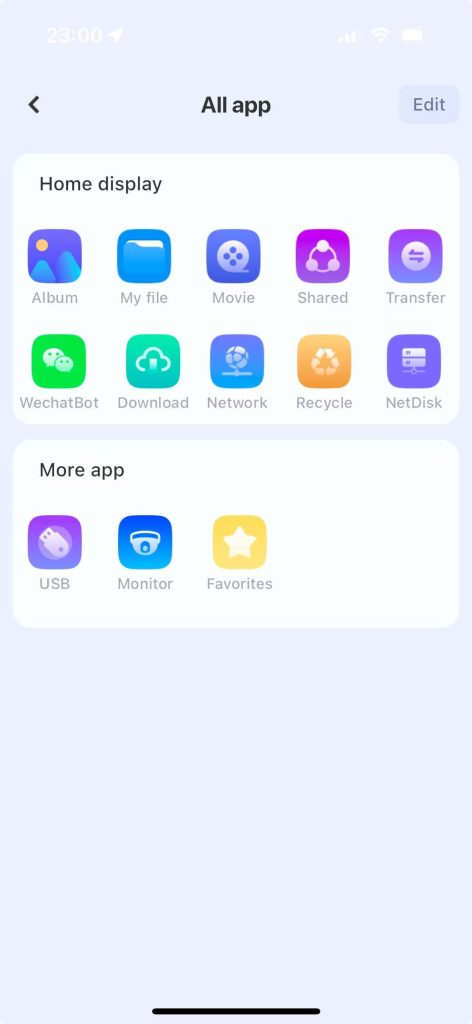
Step 2: Access the Samba settings page, where the Samba service is disabled by default.
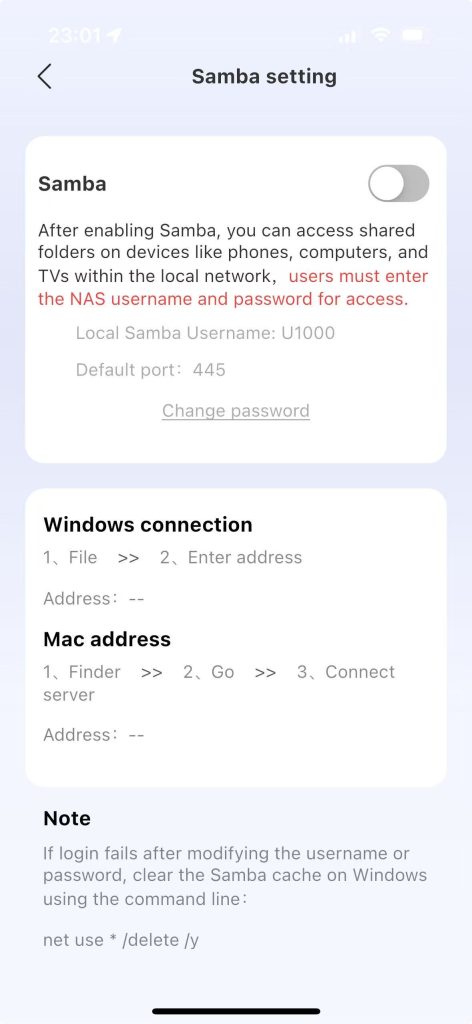
Step 3: Click the “Start” button located in the upper-right corner to open the password setup page.
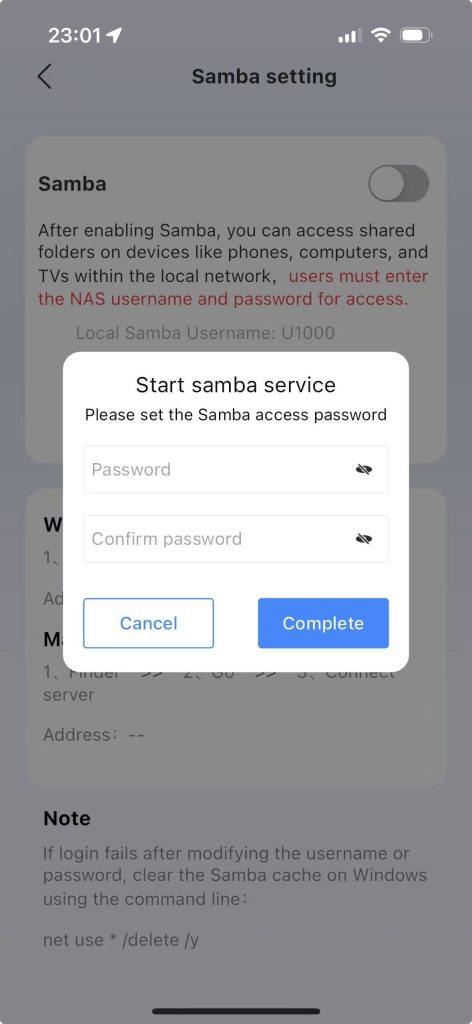
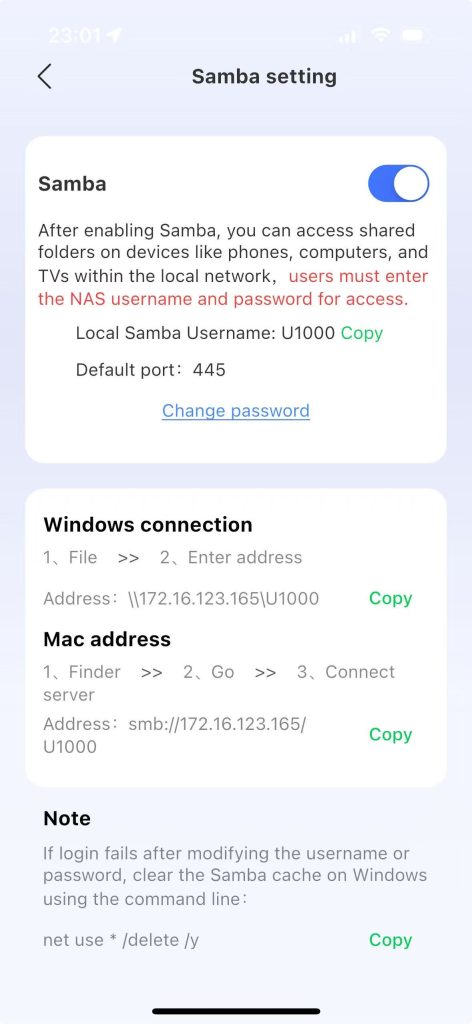
Step 4: Enter the password and click “OK”. The Samba service has been successfully started.
1.2 Enabling the Samba Service on Windows PC #
Step 1: On the PC client, navigate to the Home page, click the “More Options” (three dots) icon located in the lower-right corner, and select “Settings” from the dropdown menu.
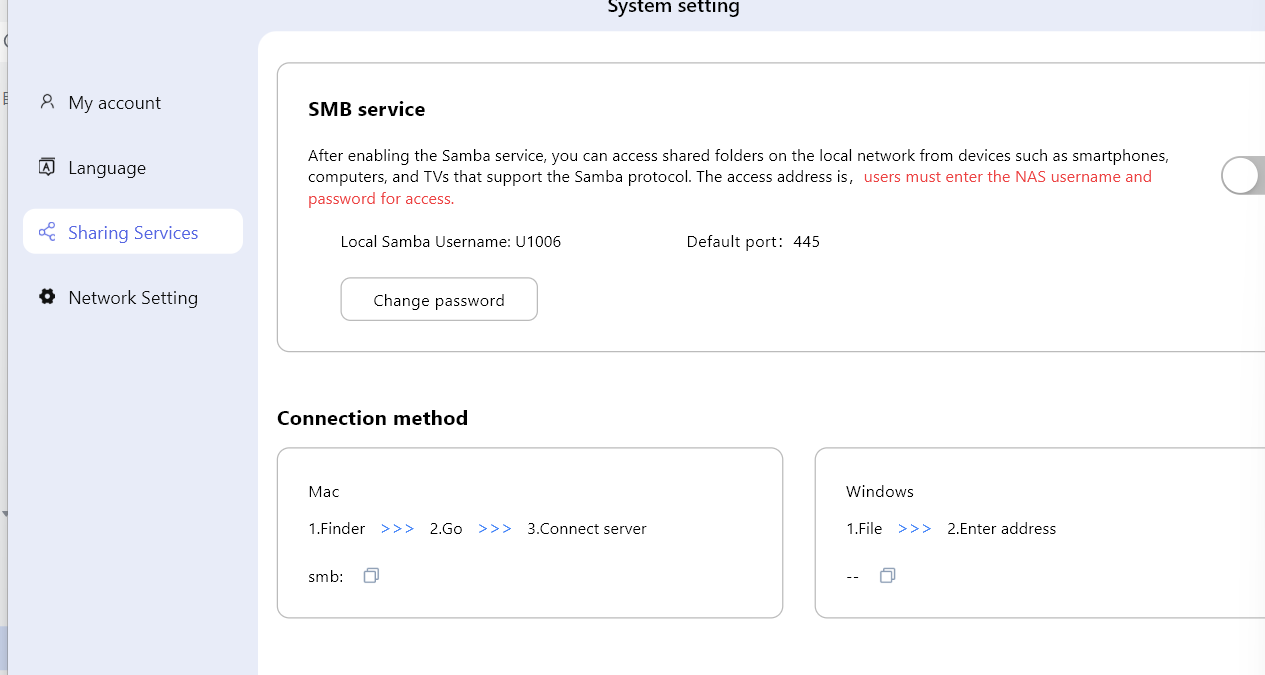
Step 2: Click on “Files and Sharing Services”
Step 3: Click “Network Service”, and a password setting page will pop up.
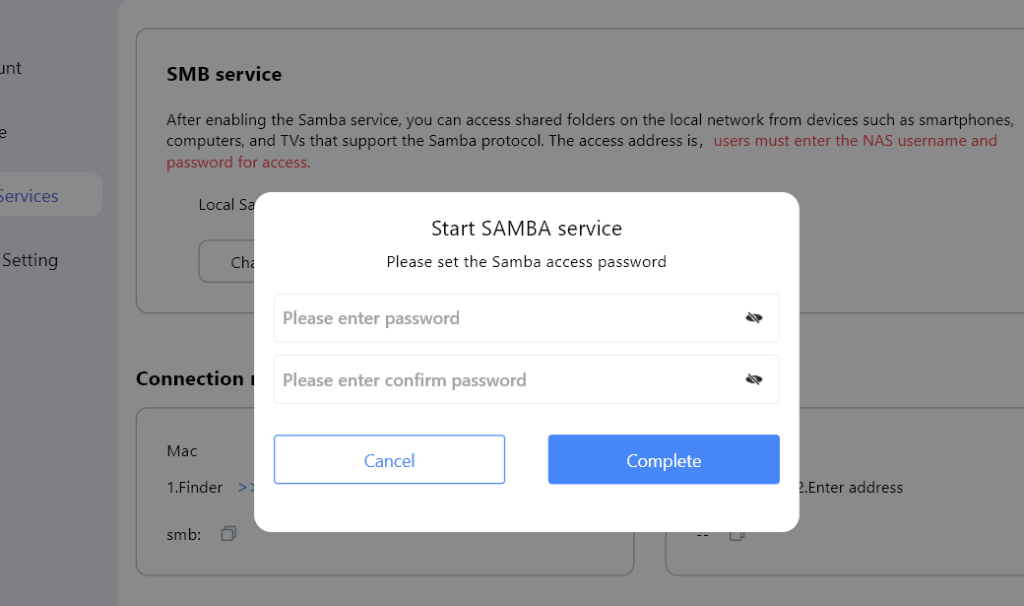
Step 4: After entering the password successfully, the Samba service is started successfully.
1.3 Accessing Samba from a Windows PC #
Step 1: Copy the network path \\172.16.123.176\u1000 and paste it into the address bar of the Windows computer.
Step 2: In the pop-up “Username/Password” dialog box, enter the Samba username: U1000 and the corresponding password to gain access to the U1000 directory.
Step 3: Files can be copied from Windows to the U1000 directory.
Step 4: Files can be copied from the U1000 directory to the Windows directory.
1.4 Samba Permission Instructions #
1. If the main account does not enable the Samba service and the sub-account chooses to enable it, a prompt like the one shown in the following figure will pop up.
2. When the main account disables the Samba service, sub-accounts that have enabled , the Samba service will encounter a prompt like the one shown in the following figure when accessing shared folders.
1.5 Accessing USB Peripheral Devices via Samba #
When a USB peripheral device is plugged into the equipment, Samba can access the USB peripheral device. The contents inside the USB peripheral device can be copied to the local computer, and vice versa, contents from the computer can also be copied to the USB peripheral device.
1.6 Clearing Samba Cache on Windows Computers #
If changes to an account or password are not taking effect during login on a Windows computer, it is recommended to clear the Samba cache. This can be accomplished by executing the appropriate command in the command-line interface.
net use * /delete /y
Step 1: Open the Command Prompt window in Windows, and enter: net use * /delete /y
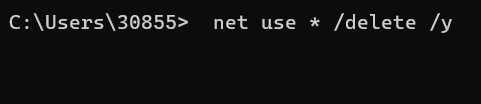
Step 2: After pressing Enter, a prompt saying “Command successful” will appear.


