You can view the related functions of download/upload/automatic album backup/file processing.
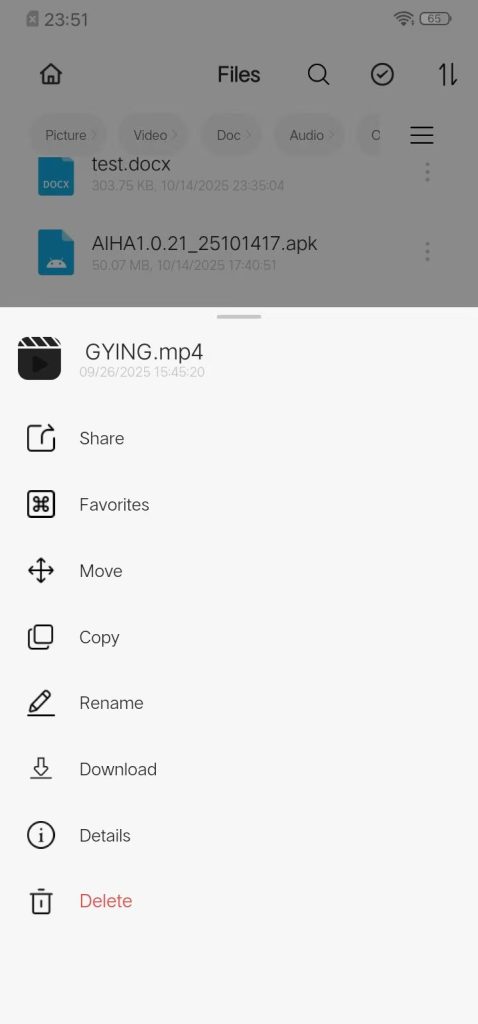
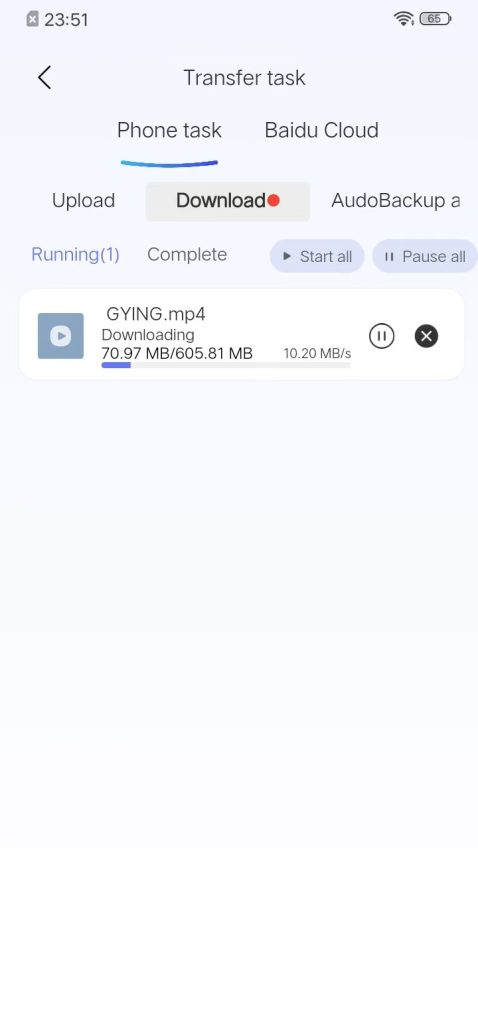
Download: Download from the device to the local phone/computer.
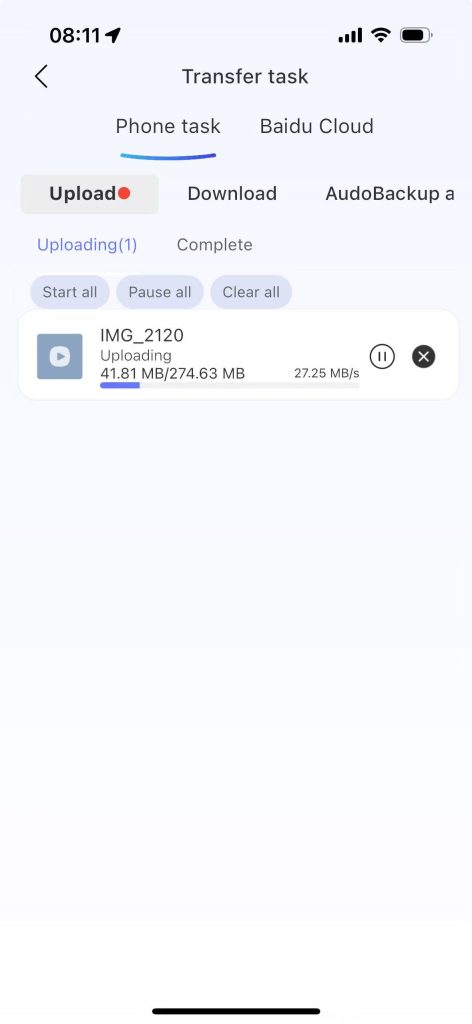
Upload: Upload files from the phone to the device.
Automatic album backup: After enabling automatic album backup, the pictures/videos in the local phone album will be automatically backed up to the device.
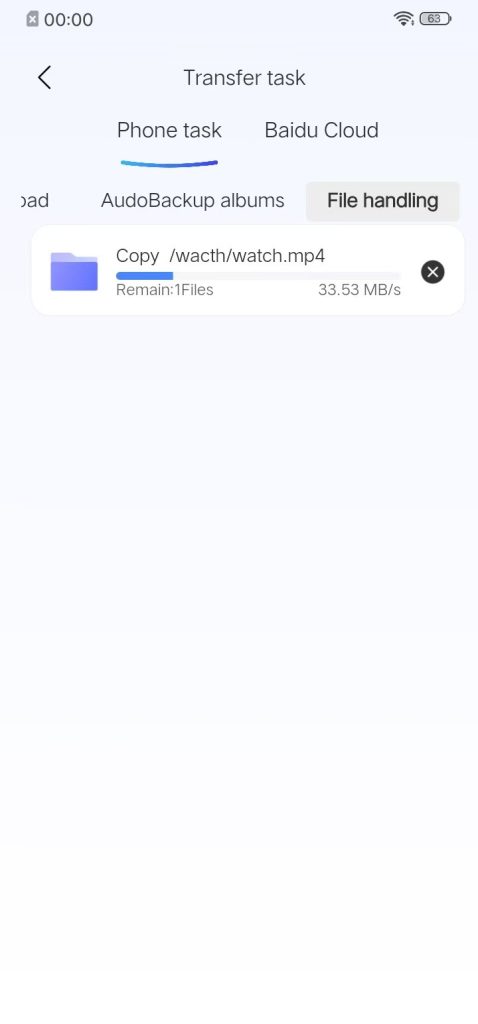
File processing: When copying files, it will be displayed in file processing.
1.1 Upload #
Step 1: Home page of the APP – File Management – Select a file, click the three dots […] button behind the file, and select “Download” from the pop-up operation menu.
Step 2: Home page of the APP – Click the “Transfer Task” icon in the upper right corner, click the “Upload” page, and view the upload tasks.
1.2 Downloading #
Step 1: On the home page of the APP – File Management page, click the “+” button at the bottom right corner to pop up the operation menu, and select “Upload Picture” / “Video”.
Step 2: On the home page of the APP – Click the “Transfer Task” icon at the top right corner, click the “Download” page, and view the downloading tasks.
Why Is the NAS Download Speed Slow?
The download speed of a NAS system may be influenced by various factors, including network connectivity, network congestion, storage disk performance, and bandwidth limitations imposed by the source server. To improve performance, consider the following recommendations:
1. Ensure the use of a high-speed and stable wired connection. Wired connections typically offer higher throughput and lower latency compared to wireless connections.
2. If multiple devices on the same network are simultaneously uploading or downloading large volumes of data, network congestion may occur, which can significantly reduce NAS download speeds. It is advisable to perform downloads during periods of low network activity or to implement bandwidth throttling for other devices.
3. When downloading from a specific website or server, the available bandwidth at the source may be limited, resulting in slower transfer rates. In such cases, consider sourcing similar files from alternative servers with higher bandwidth availability.
4. Verify that the NAS device and the target transfer device are located within the same local area network (LAN), as intra-LAN transfers generally achieve optimal speeds.
Potential Causes of NAS Download Stalls
First, confirm the method used to transfer data to or from the NAS. The supported transfer methods include:
1. Downloading from NAS to a local device (e.g., smartphone or computer): If delays occur, determine whether the transfer is conducted over an internal (LAN) or external (WAN) network. Internal network downloads are typically more stable and faster. For external network access, ensure that the mobile data download switch (e.g., 5G) is enabled, as transfers require active data connectivity. External download speeds depend on the downstream bandwidth of the user’s device network and the upstream bandwidth capacity of the NAS network. Fluctuations or instability in either bandwidth will directly impact transfer performance.
2. Stalled downloads from Baidu Cloud or Mobile Cloud Disk: These services often impose rate limits on concurrent download tasks based on traffic policies. In most cases, restrictions are automatically lifted after approximately 24 hours. Users should be informed accordingly, and persistent issues should be escalated to the technical support team for further investigation. Additionally, it is important to note that Baidu Netdisk download speeds are heavily dependent on the user’s subscription status—VIP members typically enjoy higher transfer rates. This limitation is service-specific and independent of the NAS device’s capabilities.
1.3 File Processing #
Step 1: Enter the home page of the APP, click on the file management page, select the target file or folder, click the “More Operations” button on its right side (i.e., the three dots […]), and in the pop-up operation menu, select “Copy”.
Step 2: Return to the home page of the APP, click on the “Transfer Task” icon in the upper right corner, enter the “File Processing” page, and view the ongoing or completed copy tasks.
To modify the file or folder, click the “More Actions” button (indicated by three dots […]) on its right side. Then, enter the APP’s home page, select the target file or folder, and return to the home page. On the “File Processing” page, you can view the ongoing or completed copy tasks.
1.4 Automatic Album Backup #
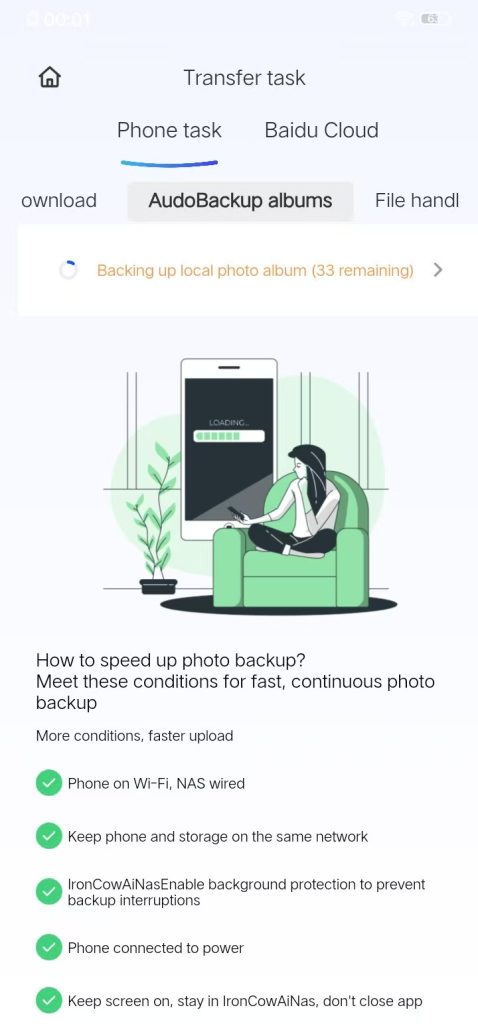
Step 1: Home page of the APP – Click the “Transfer Task” icon in the upper right corner, and then click the “Automatic Album Backup” page.
Step 2: Click the “Enable Automatic Backup” button. After enabling, the photos/videos on your phone will be automatically backed up to the device.
It shows “Backing up local albums (33 remaining)”.
1.5 Possible Causes of Abnormal File Transfer Situations #
Why Is Upload Speed Slow When Uploading Multiple Files?
When uploading a large number of small files, the system must establish multiple connections to the server for each individual file. This increases connection overhead and processing latency, resulting in a lower average upload speed compared to transferring fewer, larger files.
1.6 Possible Reasons for File Upload Failures:
1. Network instability or interruption during the upload process
2. Unsupported file format or type
3. File size exceeds the maximum limit defined by the application


