Functionality Overview:
1. Transfer files and folders from a connected USB peripheral to the designated device directory.
2. Enable direct browsing and playback of video content stored on the USB peripheral.
3. Support uploading of photos and videos from the device to the USB peripheral directory.
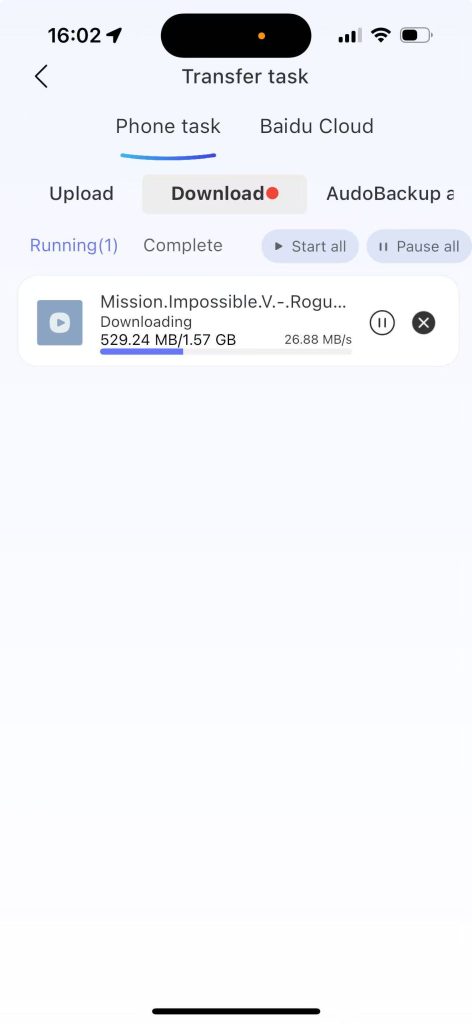
4. Allow downloading of files from the USB peripheral to local devices, including smartphones and computers.
1.1 Copying Files from USB Peripheral to Device Directory #
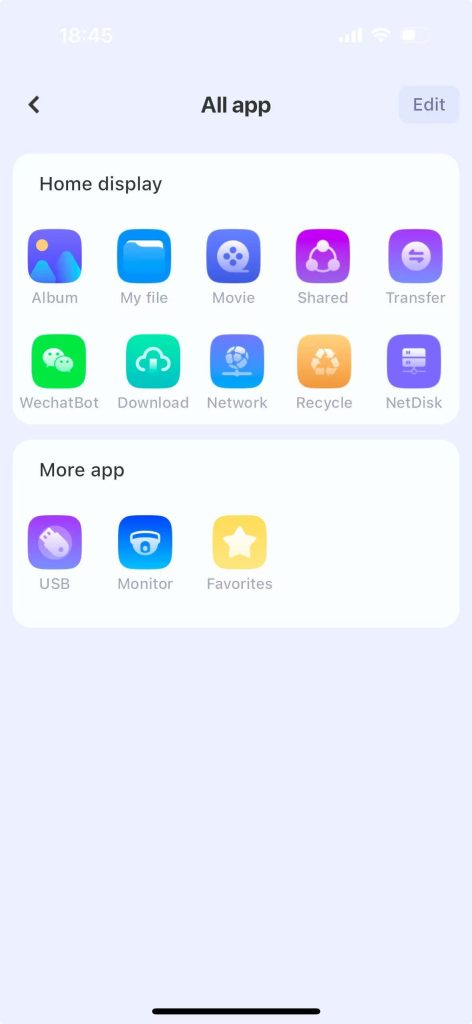
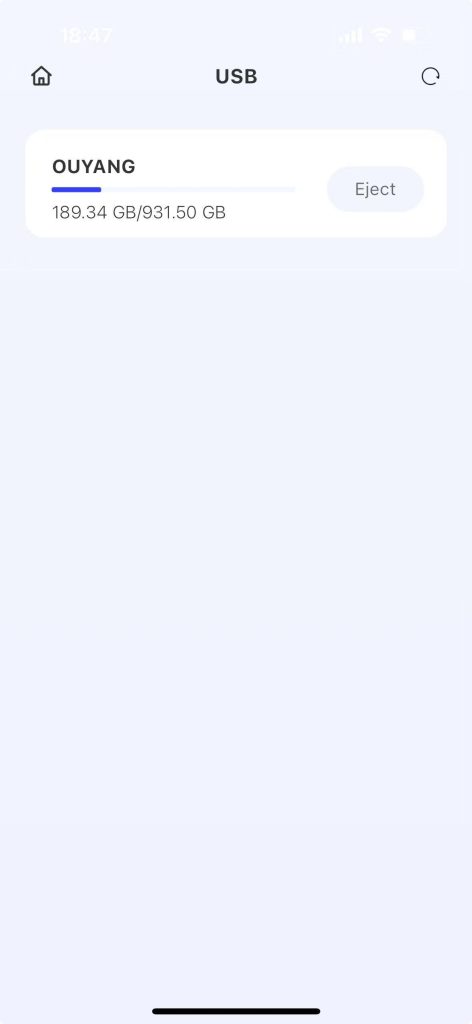
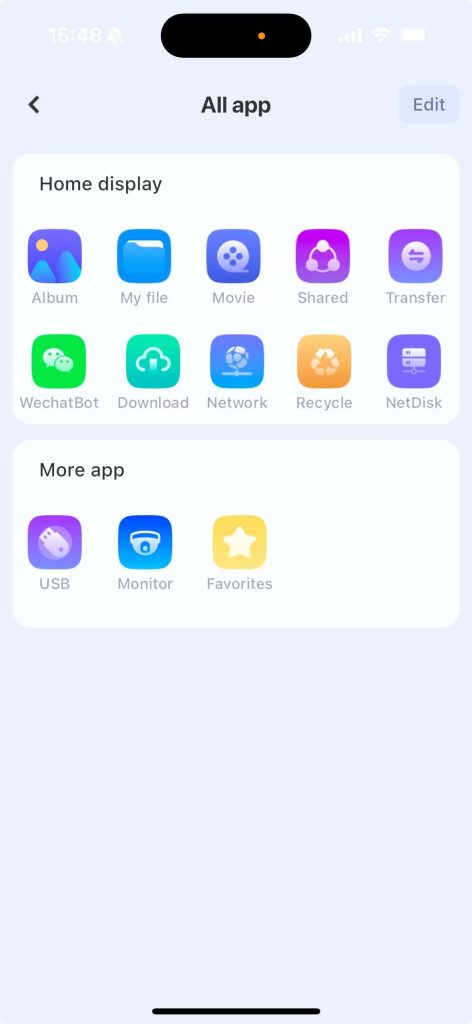
Step 1: From the app homepage, navigate to My Applications > USB Peripheral, then select the desired directory within the connected peripheral.
Step 2: Tap the 【…】 icon adjacent to the file to open the action menu, then choose the “Copy” option.
Step 3: Select the target device directory for copying; a new page will appear to confirm the copy operation.
Step 4: Click “Copy”, and a prompt “Copying in progress” will pop up.
Step 5: After the copy is completed, a prompt “Copy successful” will be displayed.
1.2 Copy the USB peripheral folder to the device directory #
Step 1: App home page – My Applications – USB peripherals, click on the peripheral directory.
Step 2: Click the 【…】 button beside the folder to bring up the operation menu and select “Copy”.
Step 3: Copy to the device directory, and a copy page will pop up.
Step 4: Click “Copy”, and a notification indicating “Copying in progress” will appear.
Step 5: After the copy is completed, a prompt saying “Copy successful” will be displayed.
1.3 USB Peripheral Media Playback #
Step 1: From the app home screen, navigate to My Applications > USB Peripheral, then select the USB Peripheral directory.
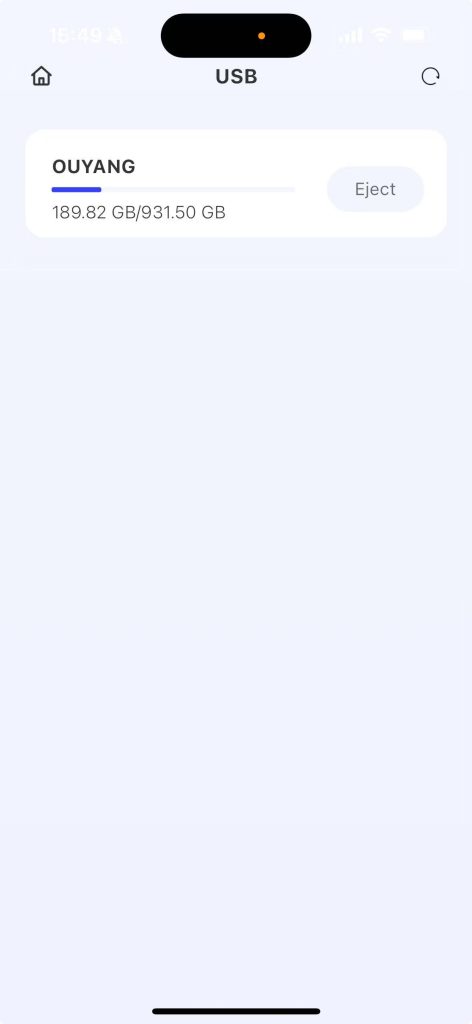
Step 2: Choose a media file and initiate playback; successful playback via the USB peripheral will be confirmed.
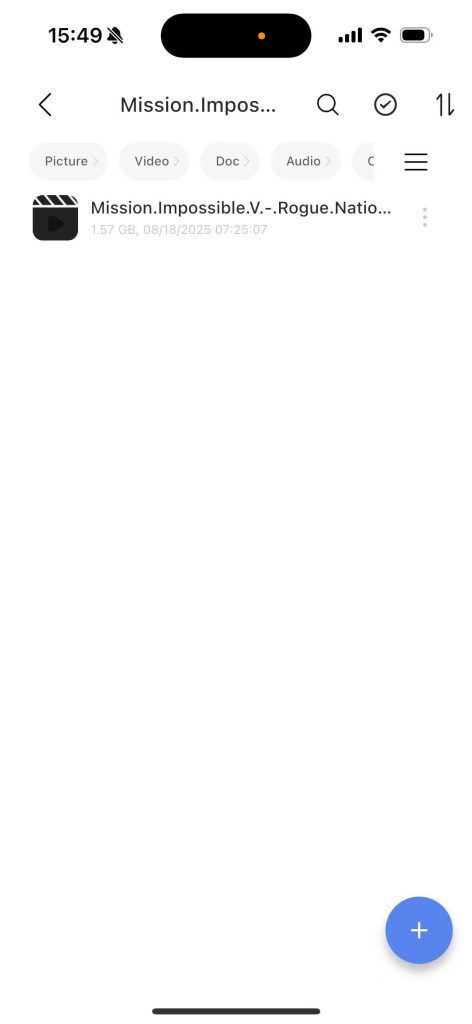
Step 3: Click “TV Playback” to enable screen mirroring or direct playback on a connected local television.

Step 4: Click “DLNA” to stream content to a compatible device using DLNA protocol.
1.4 Uploading Photos and Videos to USB Peripheral #
Step 1: From the app home screen, navigate to My Applications > USB Peripheral, then select the USB Peripheral directory.
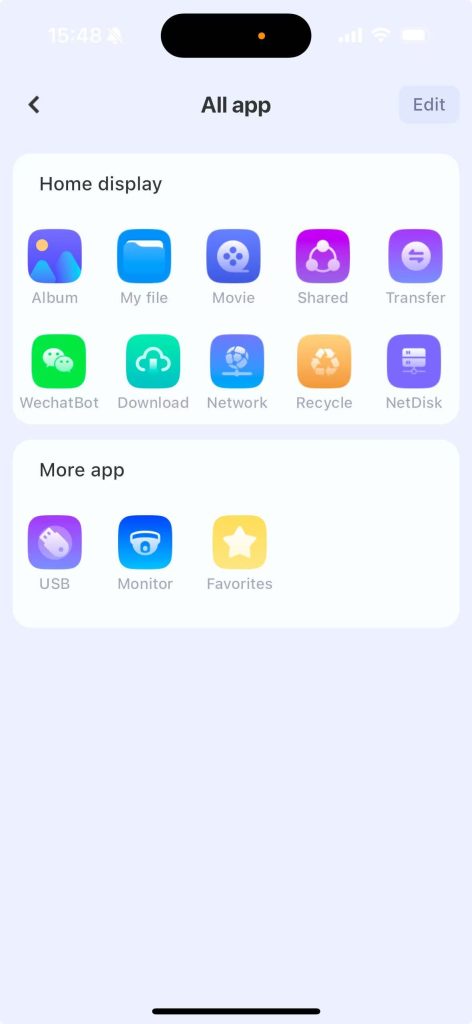
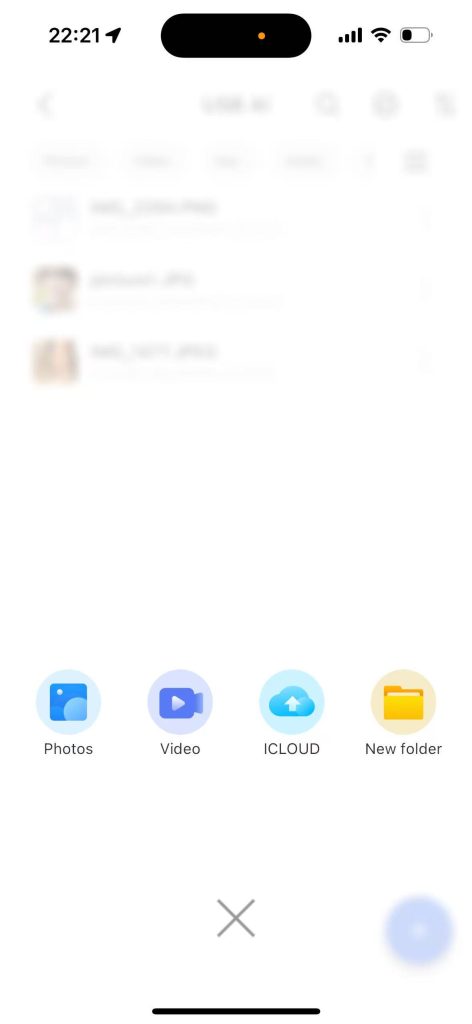
Step 2: Tap the “+” button located at the bottom-right corner to display the function menu.
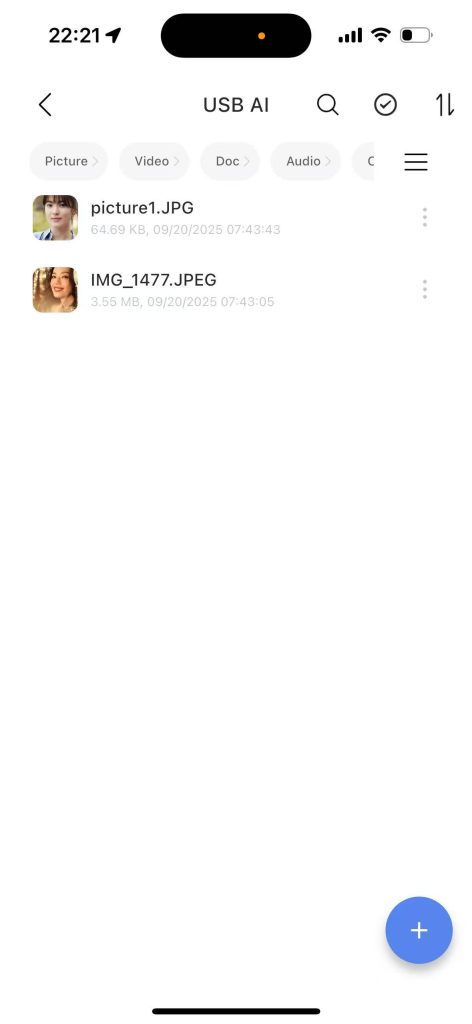
Step 3: Select either “Photos” or “Videos” and proceed with uploading the chosen files to the USB Peripheral directory.
1.5 Downloading Video or Photos from USB Peripheral to Local Device #
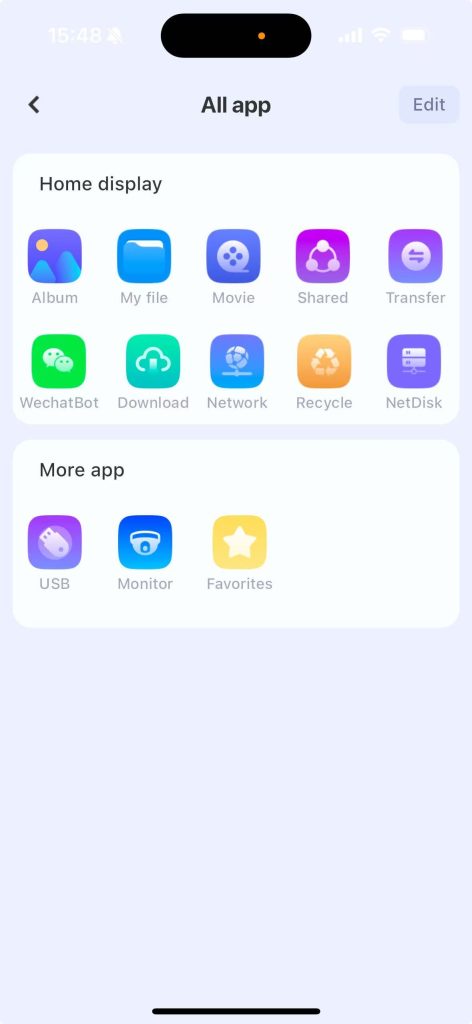
Step 1: From the app home screen, navigate to My Applications > USB Peripheral, then select the USB Peripheral directory.
Step 2: Select the desired Video or photo, then tap the “More Options” (three-dot) icon to reveal the action menu.
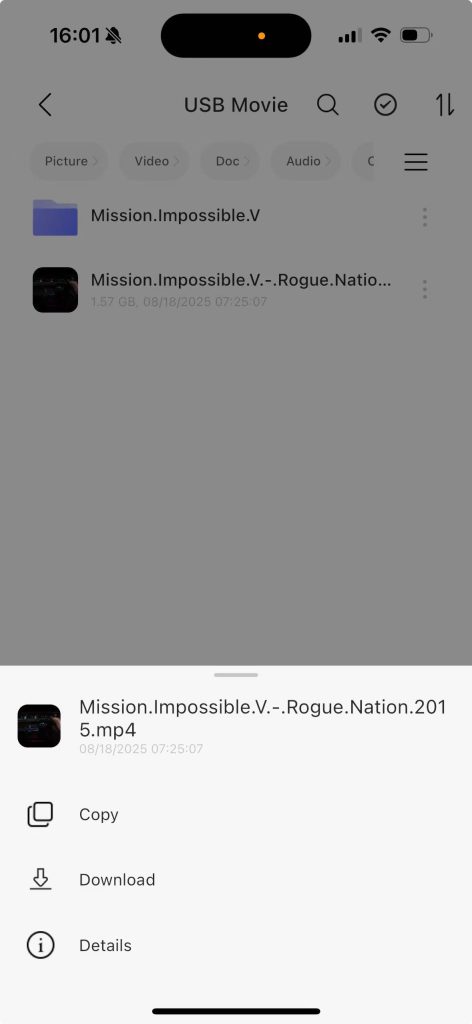
Step 3: Choose “Download”; upon confirmation, the selected Video or photo will be transferred to the local phone storage.